
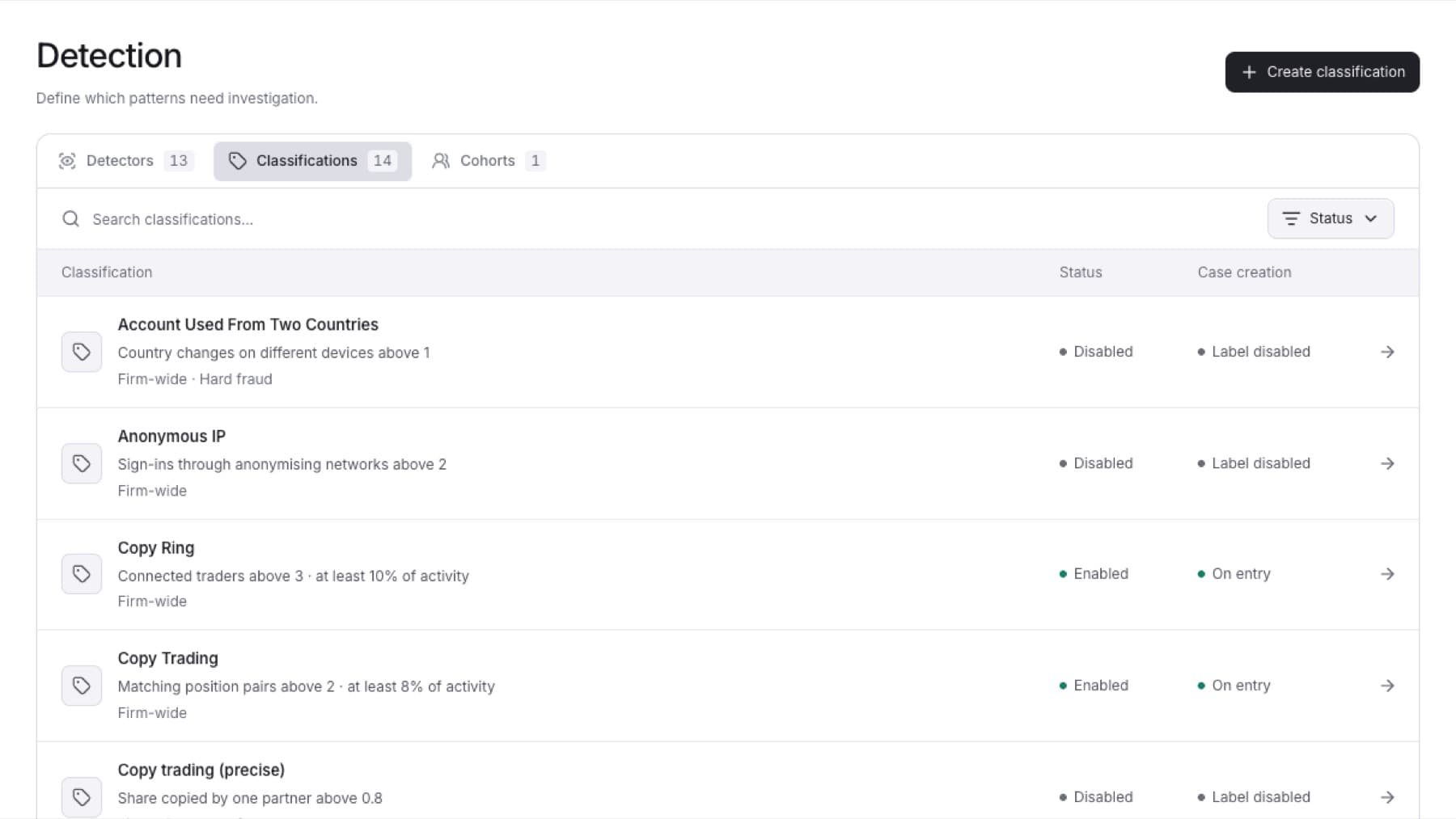
Find the problem you see below. The most common cause is listed first.
If a trader you expected has no Case
QuantSentry creates Cases only from your detection settings. Exposure and the review threshold do not create Cases.
- Go to
Settings > Detectionand click the Classifications tab. - Find the classification that should cover this trader and read its Case creation column.
- Off: Case creation is not turned on. See Turn on Case creation for a classification.
- Check paused detector: a detector the classification reads is paused. See Pause or turn on a detector.
- Label disabled: the classification itself is turned off. Open it, turn on Classification enabled and click Save classification.
- On entry: Case creation is on. Continue to step 3.
- Open the classification and check its rules. The trader's figures may be below the Threshold. See Change a classification's threshold.
- Open the classification's Case creation settings. If Minimum detector confidence (optional) is set, findings below that confidence do not create a Case.
- If all of this looks right and there is still no Case, contact support with the trader's name and the classification name.
Note: A Case is created only when a trader enters the classification after Create Cases on entry is turned on. Traders who were already in the classification before that do not get a Case.
If the queue says No Cases in this view
Your tab, filters or search hide every Case.
- Click Clear filters.
- Click the All open tab.
If the queue says No, followed by an asset class and Cases (for example No Futures Cases)
The Asset class control at the top of the page is set to one class.
- Click Show all asset classes.
If the Status shows as a label with no menu, or you cannot take a Case
Your role is Viewer. Viewers can read Cases but not change them.
- Ask a workspace Owner or Admin to give you the Analyst role in
Settings > Members.
If the status you want is not in the menu
The menu only lists the moves allowed from the Case's current status. Monitor is never offered as a move.
- Pick the nearest allowed status, for example Investigating.
- Add a note to explain the situation. See Add a note to a Case.
If you see That change is not allowed from where the Case stands.
Someone else changed the Case while you had it open.
- Reload the page.
- Open the status menu again and pick from the moves now listed.
If you see The Case could not be saved.
- Reload the page and try again.
- If it fails again, contact support and include the Case title.