
Settings & Connections
Workspace configuration: connected data sources, detection tuning, targets, and developer access.
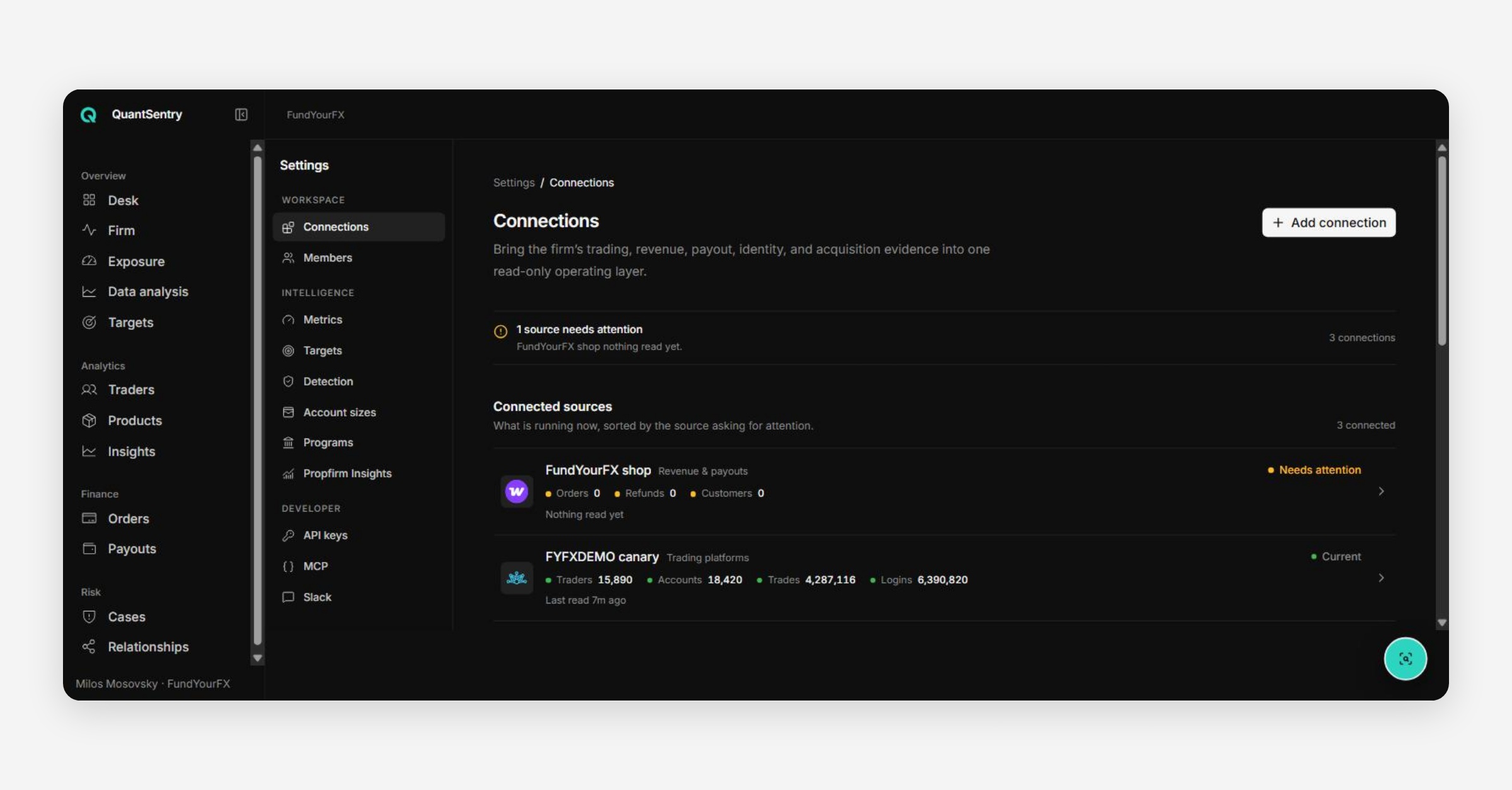
Settings
Settings configures the workspace itself, grouped into Workspace, Intelligence, and Developer sections in the left rail.
Workspace
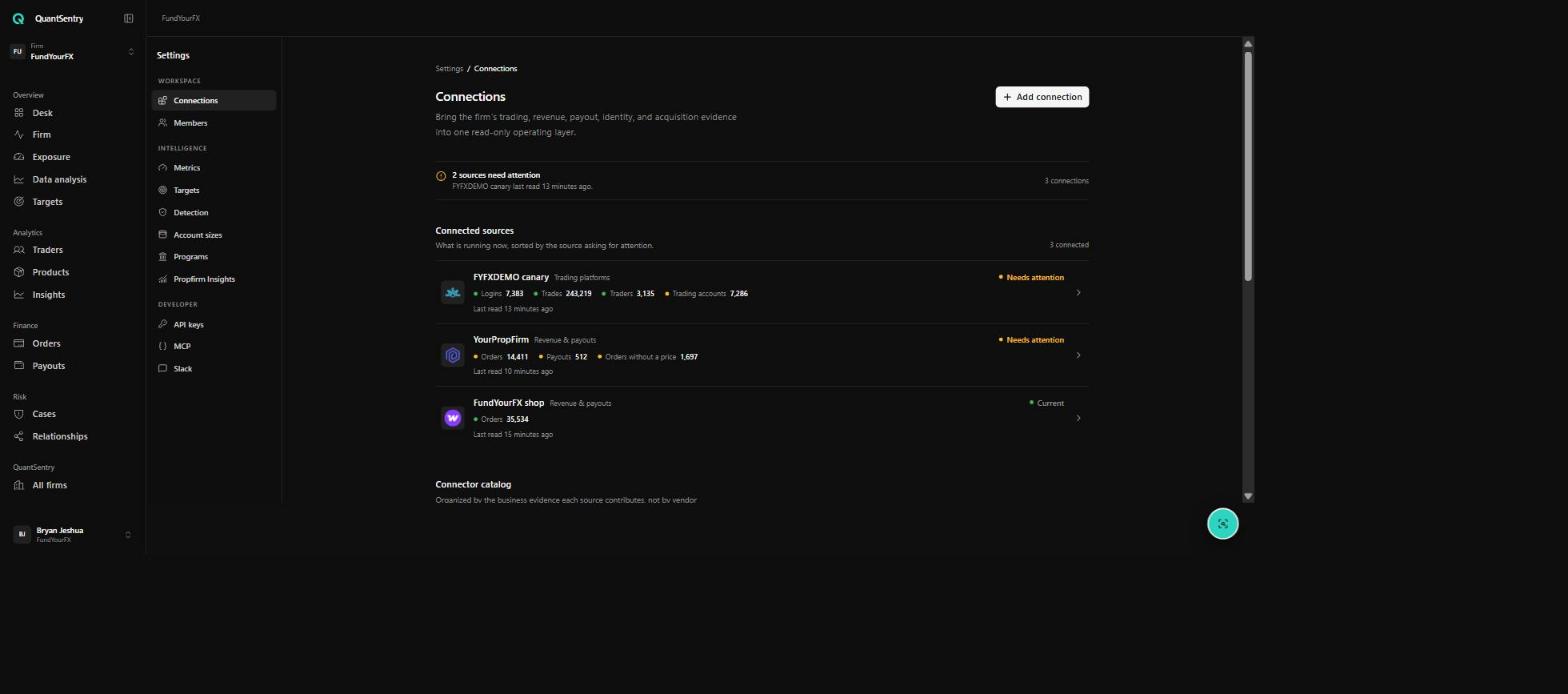
Connections — "Bring the firm's trading, revenue, payout, identity, and acquisition evidence into one read-only operating layer." Every source (e.g. MetaTrader 5, YourPropFirm, a firm's own shop) shows live counts (logins, trades, traders, orders, payouts) and a "last read" timestamp. A source flagged "Needs attention" should be checked before trusting the numbers on any page that depends on it — a stale or broken connection here quietly understates every downstream figure. "Add connection" opens the connector catalog (21+ connectors at last count), organized by the business evidence each source contributes rather than by vendor type.
Members — manage who has access to the workspace and their role.
Granting a teammate access
To bring a new teammate onto QuantSentry:
Open Settings → Members and add the person, assigning their role.
If your firm routes QuantSentry notifications to Slack, also add them to that channel in Slack (the channel is configured in Settings → Slack) so they see new cases and payout alerts as they happen.
Ask them to confirm access by opening a trader's Passport: go to Traders, click any trader, and check that the profile loads.
If the Passport page does not load for them, check that their Member role is still correct and that the workspace's data connections are not flagged "Needs attention".
Intelligence
Setting | Configures |
|---|---|
Metrics | The business measures available on the Data Analysis page |
Targets | The revenue, profit, and payout-ratio targets shown on the Targets page |
Detection | Which detection rules run and their thresholds — the v2 equivalent of v1's Detection Rule Settings |
Account sizes | The account-size groupings used across Traders, Products, and Orders |
Programs | Challenge/evaluation program configuration |
Propfirm Insights | Configuration for the market-intelligence data shown on the Insights page |
Developer
API keys — generate and revoke programmatic access; a new key is shown once at creation and never again.
MCP — connect QuantSentry's data to Model Context Protocol clients (e.g. an AI assistant outside the product).
Slack — send QuantSentry notifications (e.g. new cases, payout thresholds) into a Slack workspace.
Was this helpful?