
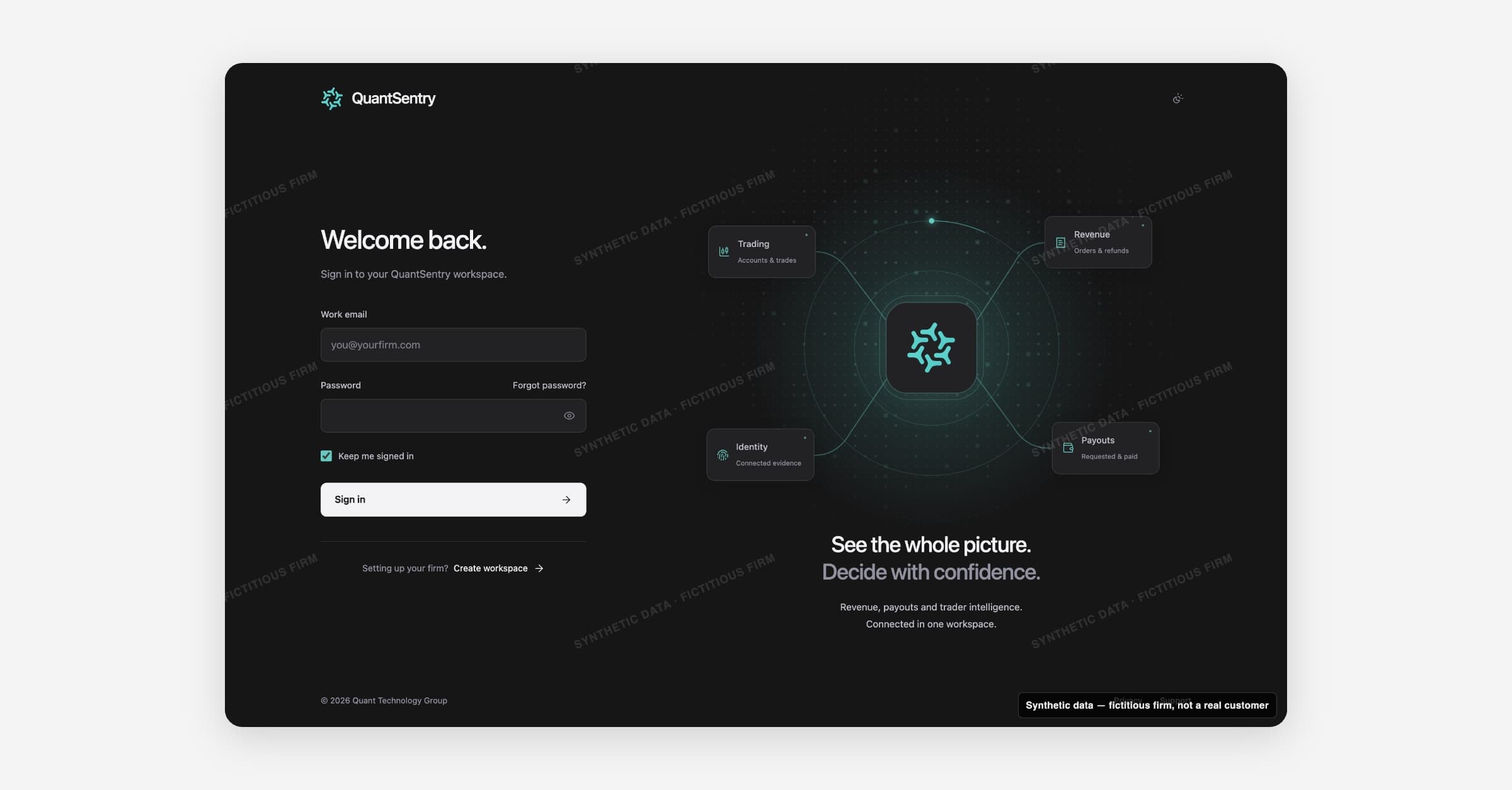
Sign-in and access
Sign-in and access covers every screen a person sees before they are inside a QuantSentry workspace: signing in, creating an account and a firm workspace, recovering a password, accepting a team invitation, and getting help. These screens hide the sidebar and main workspace shell and use a single split layout (form on one side, a connected-data illustration on the other) or a centered card for shorter flows.
Signing in and creating a workspace
Signing in and creating a workspace are two separate paths, both reachable from the same entry screen.
Sign in with a work email and password takes a returning user straight into their workspace, landing on Get set up if setup is not finished, or Overview otherwise.
Create workspace starts a two-step flow for a firm's first user: Account (name, work email, password), then Workspace (firm name). The workspace step only becomes available once the account step is complete, and a failed workspace save keeps the account details you already entered.
Forgot password? sends a work email to a reset request. Setting a new password requires a valid, unexpired reset link.
Every submit surface states plainly what did happen, and what did not. For example, requesting a reset link shows No email was sent. until a real request goes out, and saving a workspace shows Workspace details stay in this tab.
Joining as an invited teammate
An invitation link carries a firm name, an assigned role, and a status:
Invitation status | What the person sees |
|---|---|
Pending, new account | A Join {firm name} form pre-filled with their role and email, asking them to set a name and password. |
Pending, existing account | A sign-in form to accept the invitation with their existing account. |
Expired | A notice to ask their workspace administrator for a new invitation. |
Already used | A notice to sign in with the account they already joined with. |
Accepting an invitation never changes who can access the firm or what they can do on its own. Role and membership changes happen in Members; the invitation screen only reads the role and email that were already set there.
Getting help
Help signing in groups the three most common problems: a forgotten password, joining an existing team (which requires an invitation from an administrator), and losing access to a workspace (which also requires an administrator, to check membership and the account email on file). There is no separate support contact beyond this page.
How it connects
Signing in or creating a workspace hands off to Overview, or to Get set up for a firm's first login. Invitation screens read roles and pending invitations from Members, which is also where an administrator sends invitations and changes roles.