
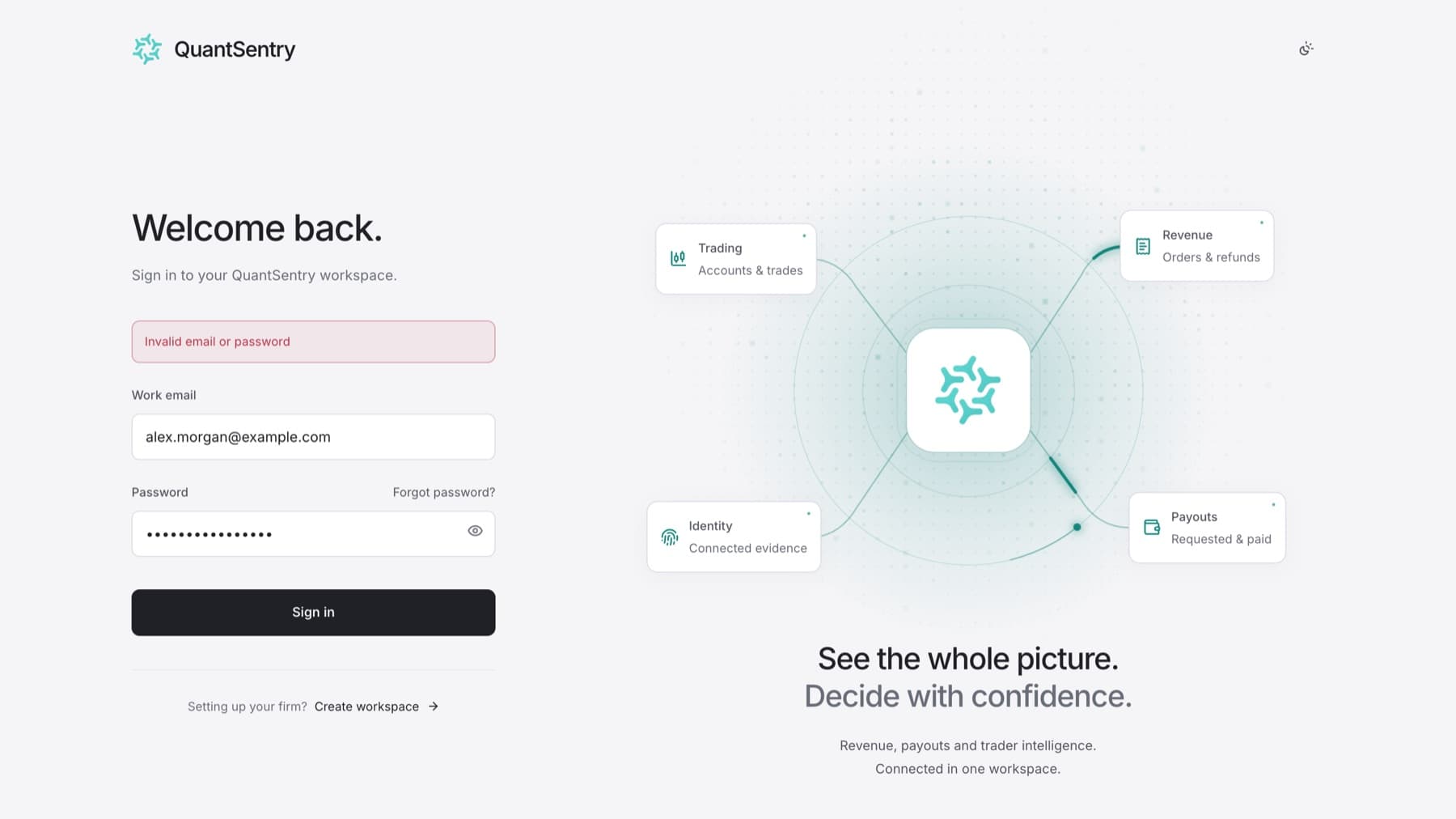
Find the message you see, then follow the fix.
If your email and password are not accepted
An error message appears above the fields. The email and password do not match an account.
- Check that you typed your work email, not a personal one.
- Type the password again. Check that Caps Lock is off.
- If it still fails, select Forgot password? and follow Reset a forgotten password.
If no reset email arrives
- Check your spam or junk folder.
- Check the address shown on Check your email. If it is wrong, select Use another email and request the link again.
- If you still get nothing, your email may not have an account. Ask your workspace administrator to check the email address on your account.
If you see "This reset link is unavailable."
The link expired after one hour, or it was already used.
- Select Request a new link.
- Use the newest email only.
If an invitation link does not work
| Message | Fix |
|---|---|
| This invitation has expired. | Ask your workspace administrator for a new invitation. |
| This invitation was already used. | Select Back to sign in and sign in with the account you joined with. |
| This invitation link doesn’t work. | It may have been cancelled. Ask your workspace administrator for a new invitation. |
| This invitation is for another address. | Select Sign out, then open the link again and use the address it was sent to. |
If you see "Create a workspace." after signing in
Your account is not a member of any firm. Do not create a new workspace if your firm already uses QuantSentry. Ask your workspace administrator to invite you.
If you see "That workspace could not be opened."
Your membership in that firm may have been removed. Choose another workspace, or ask that firm's administrator to check your membership.
Still stuck
Select Support at the bottom of any sign-in screen to open Help signing in. If that does not help, contact your workspace administrator, or message QuantSentry support in your firm's support channel in Slack.