
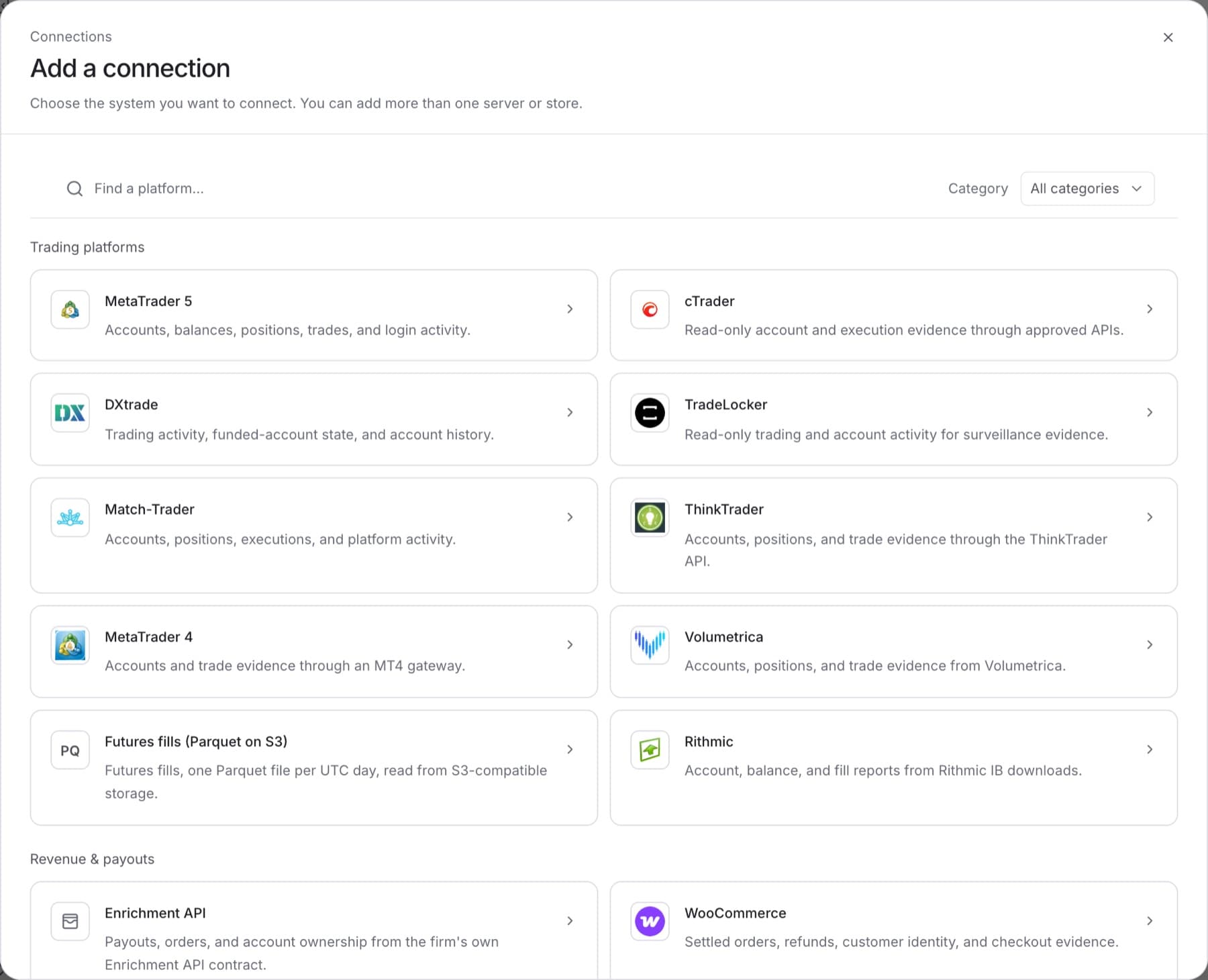
Connect a system so QuantSentry can read its data. You need the Owner or Admin role, and the credentials for the system you are connecting (for example a read-only manager login or an API key).
- Select Settings, then select Connections.
- Select Add connection.
- In the Add a connection dialog, type the system's name in Find a platform, or choose a Category.
- Select the provider card, for example MetaTrader 5 or WooCommerce.
- In Connection name, enter a name your team will recognise, for example
Live server 1. - Enter the credentials the form asks for.
Tip: You can add more than one server or store from the same provider. Give each a different connection name.
- Select Verify and connect.
Tip: Some providers use a different final step. An identity provider uses Connect provider. An ad account sends you to the provider to sign in. A Custom webhook opens its own setup page, see Set up a custom webhook.
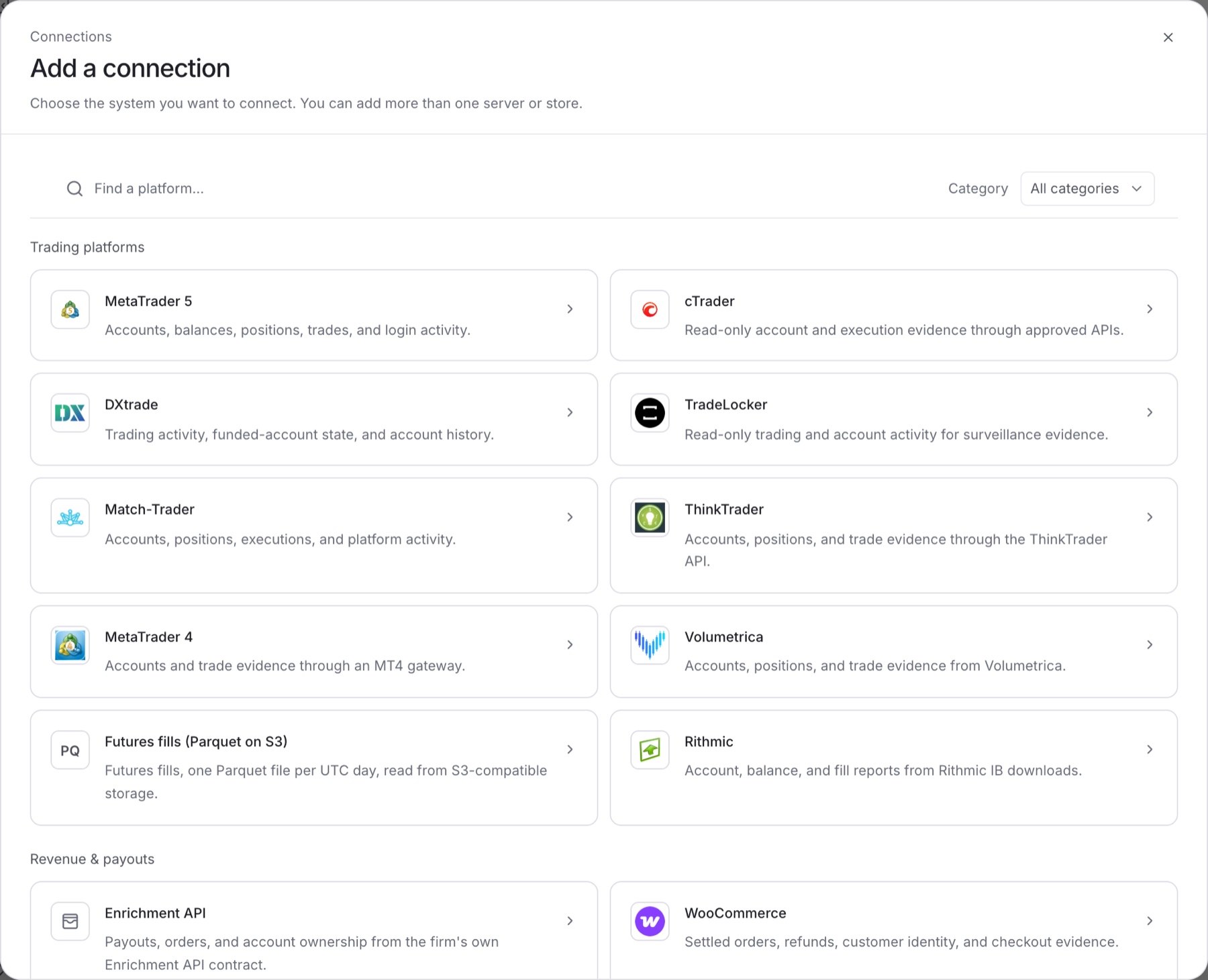
Result: The connection appears in the list. It shows Awaiting first sync until the first data arrives, then Current.