
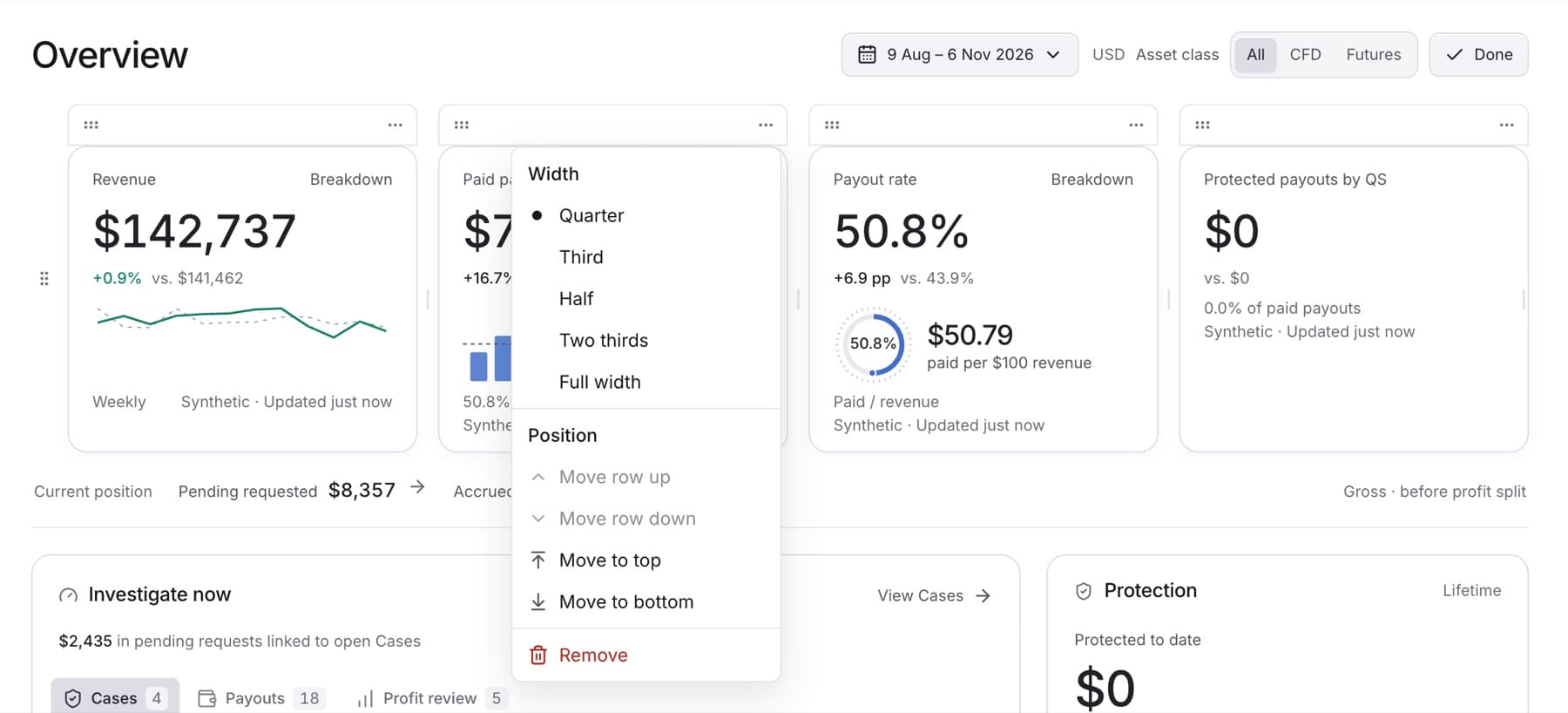
Change the order, width or set of the headline cards at the top of Overview. Any role can do this.
- Open Overview.
- Select Customize in the page header.
- On the card you want to change, select its options menu (the ... button).
- Do one of the following:
- Under Width, select Quarter, Third, Half, Two thirds or Full width.
- Under Position, select Move to top, Move to bottom, Move row up or Move row down.
- Select Remove to take the card off the page.
Tip: You can also drag a card by its move handle.
- To put back a card you removed, select Add widget, then select the card.
- Select Done.
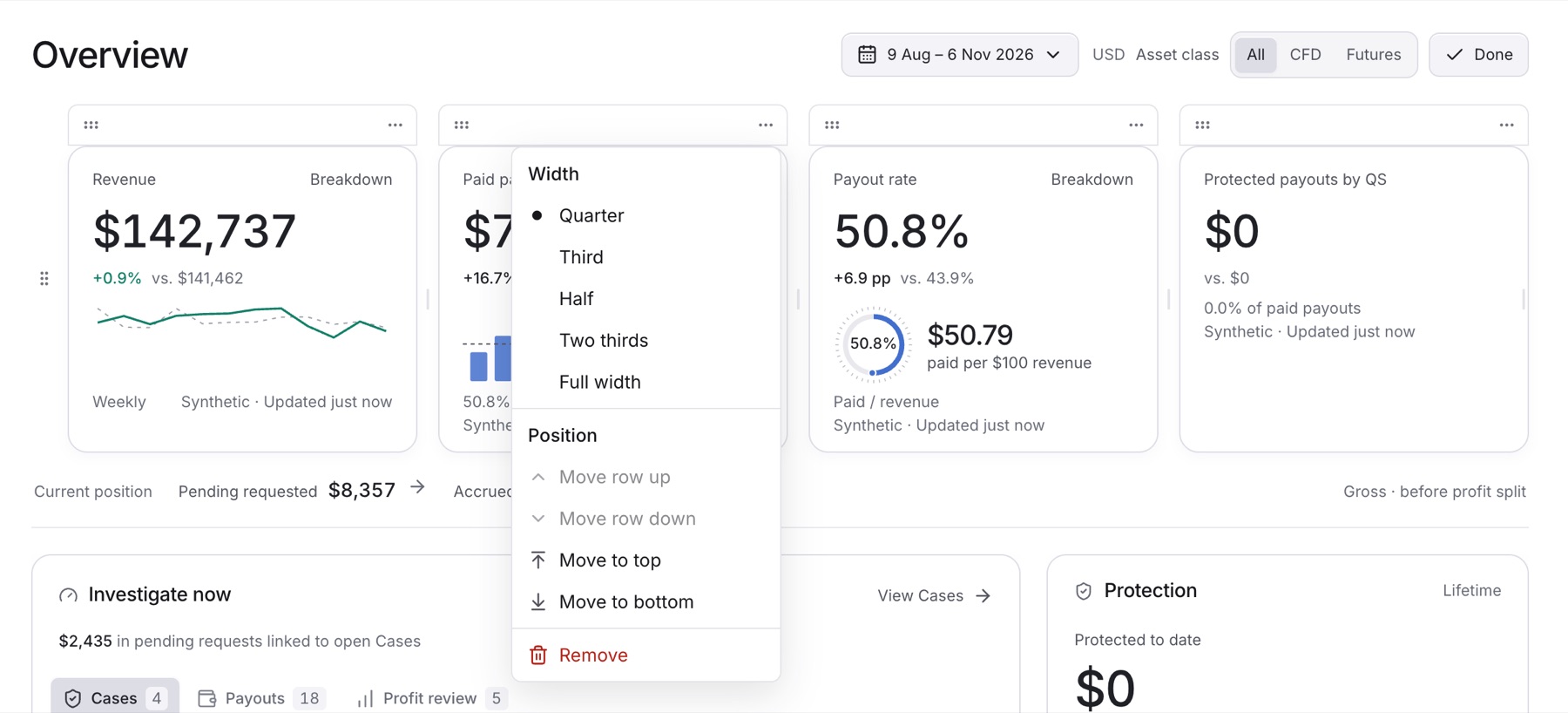
Result: The headline cards show in your new arrangement.
Tip: To undo your changes, select Reset layout. It appears while you customize, after you change something.
Important: The arrangement is not saved. It returns to the default when you leave or reload Overview.