
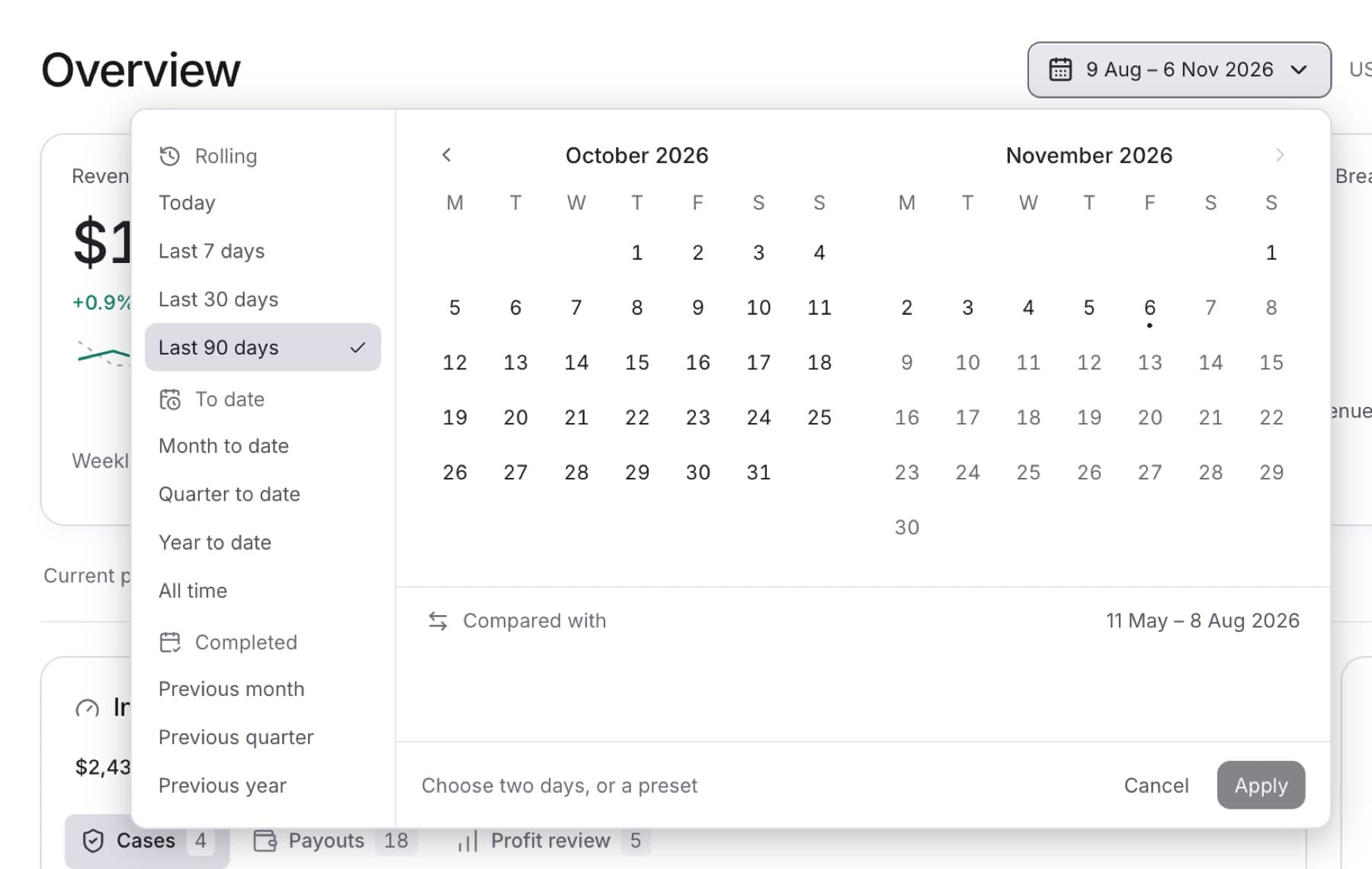
Change the period that the Overview headline cards and panels measure. Any role can do this.
- Open Overview.
- Select the date range button at the top right of the page.
- Do one of the following:
- Select a preset under Rolling, To date or Completed, for example Last 30 days, Month to date or Previous month.
- Select a start day and an end day in the calendar, then select Apply.
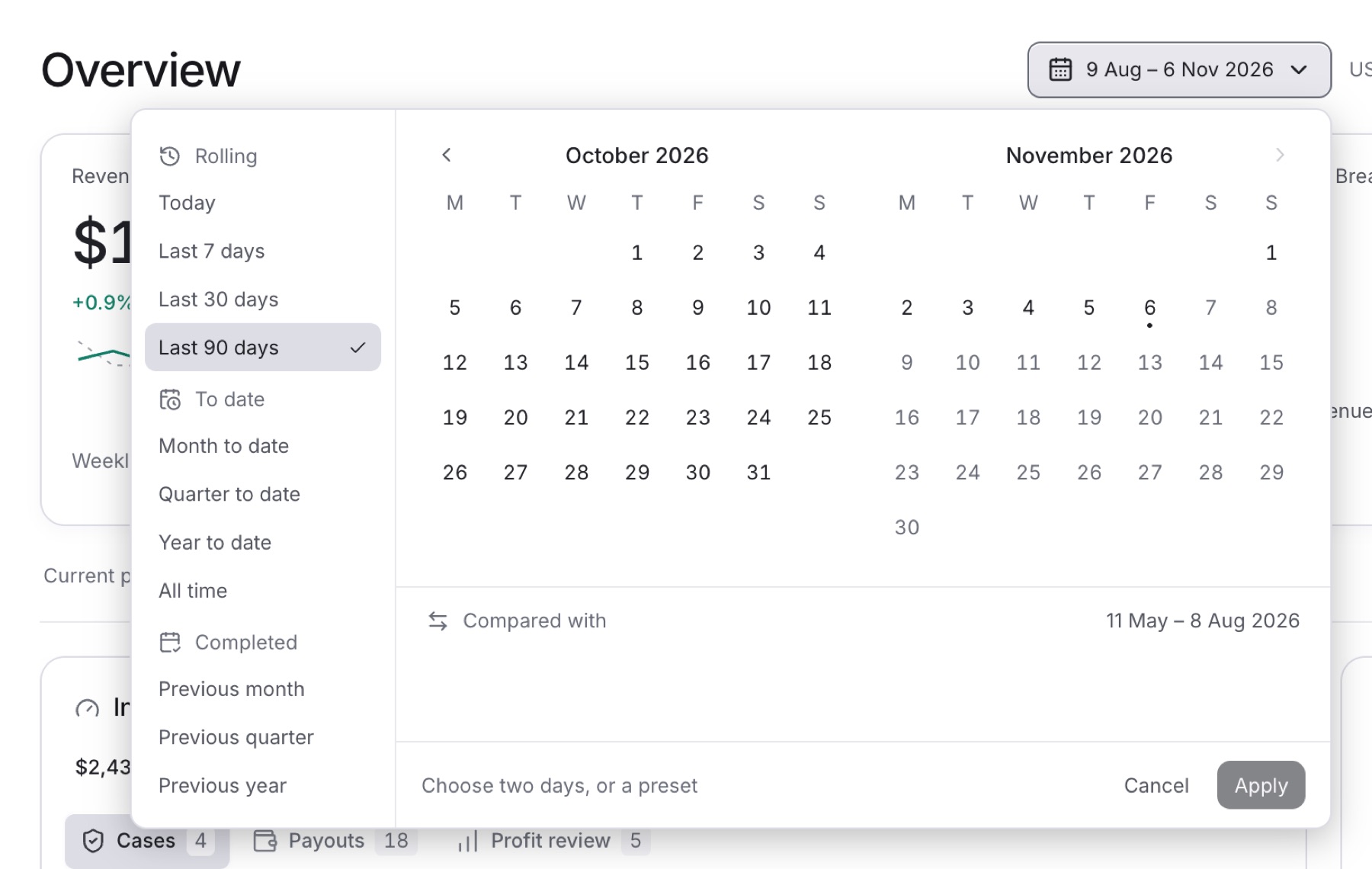
Result: The button shows the new range, and the cards and panels reload for it. Each headline card compares the range with the period before it. The picker shows that period next to Compared with.
Tip: Pending requested, Accrued liability and the panels marked Current show the position now, so the date range does not change them.
Tip: The Revenue & payouts panel shows the last 12 months by default. To make it follow your date range, select Selected period in that panel.
Tip: The date range is part of the page address. To share the same view, copy the address from your browser.