
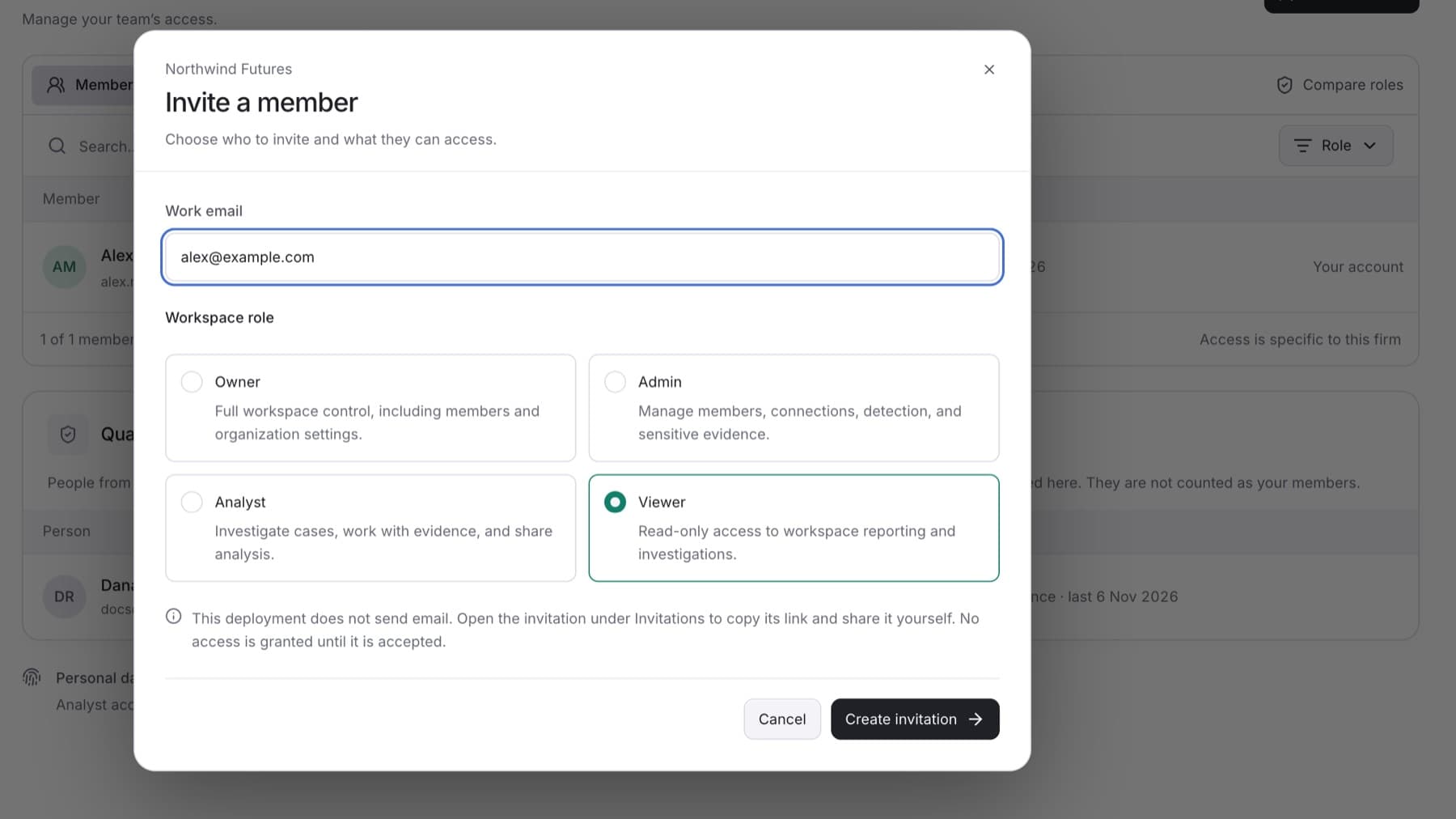
Give a colleague access to your firm's workspace. You need the Owner or Admin role.
Select Settings, then select Members.
Select Invite member.
In Work email, enter your colleague's work address, for example
[email protected].Under Workspace role, select a role. Viewer is selected by default.
Tip: Choose the lowest role the person needs. Select Compare roles on the Members page to check what each role can do.
Note: Only an Owner can invite someone as Owner. If an Admin selects Owner, the invitation is refused with The invitation could not be created. Check the address and your role.
Select Send invitation.
Tip: If your workspace does not send email, the button reads Create invitation. Open the invitation on the Invitations tab, copy the Invitation link, and send it yourself.
Result: The invitation appears on the Invitations tab as Awaiting acceptance. Your colleague gets access when they accept.
If you see That address already has an open invitation, open the existing invitation on the Invitations tab instead. If you see That address already belongs to a member of this workspace, the person already has access.