
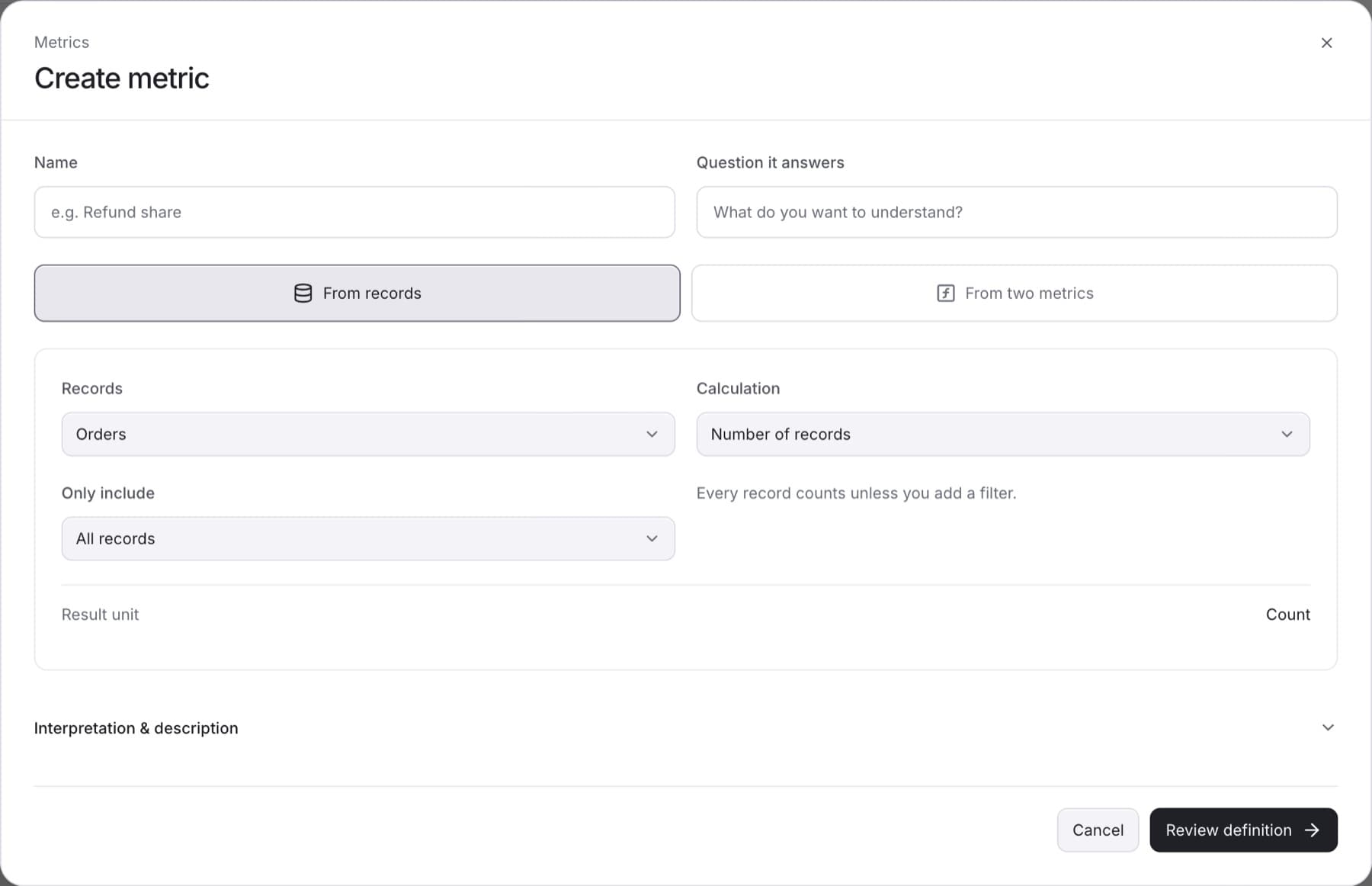
Add a metric your firm needs that QuantSentry does not define, for example a refund share. You need the Owner, Admin or Analyst role, and at least one connected data source.
- Select Settings, then under CONFIGURATION select Metrics.
- Select Create metric.
- In Name, enter the metric's name, for example
Refund share. - In Question it answers, enter what the metric helps you understand.
- Under Calculation type, select From records or From two metrics.
- Fill in How it is calculated:
- For From records: choose Records, then Calculation, then Value if the calculation needs one. To count only some records, choose a field in Only include and enter Matching values.
- For From two metrics: choose First metric, Operation and Second metric.
Tip: Check Result unit. If it reads Choose compatible measurements, the two metrics cannot be combined with that operation. Pick another operation or metric.
- Optional: open Interpretation & description and set Good news is, Measurement and Description (optional).
- Select Review definition.
- Check the summary, then select Save metric.
Tip: To change something, select Edit definition to go back.
Result: The message Metric saved. appears and the metric is listed under Your metrics. You can now add it in Data Analysis.