
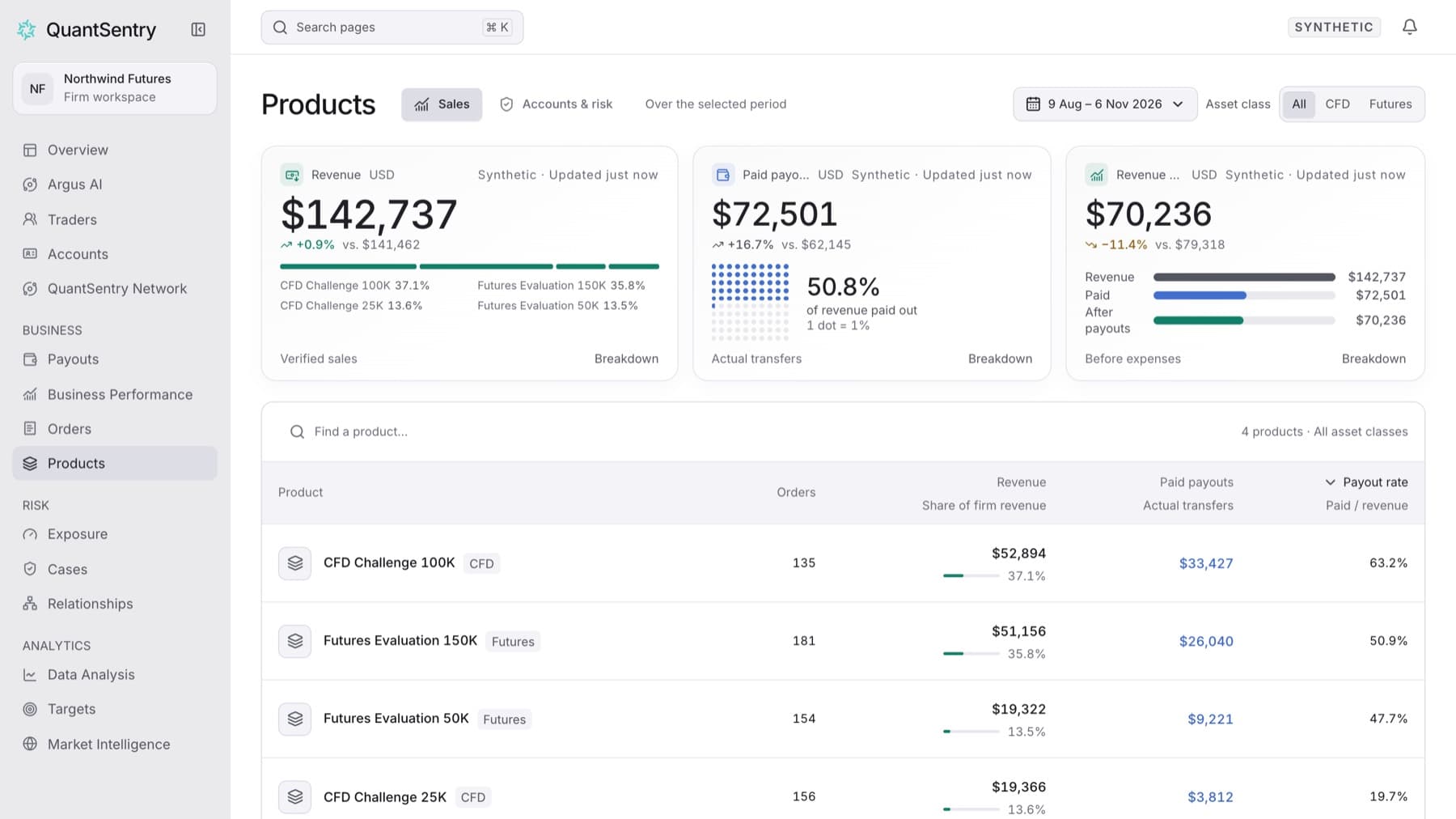
Compare your products side by side for a period. Any workspace role can do this.
- Click Products in the side menu.
- Click Sales if another view is open.
- Click the period button at the top right and choose a period, for example Last 90 days.
- Click the Payout rate column header to sort by it. Click it again to reverse the order.
- Optional: type part of a product name in Find a product… to narrow the list.
Result: The table is sorted by payout rate, and each row shows Orders, Revenue, Paid payouts and Payout rate for the period.
Tip: A high payout rate means the product pays out a large share of what it earns. Sort by Revenue next to check whether it is also a large seller.
Tip: A row named Not mapped to a product holds paid payouts whose plan is not linked to any product. Click it to open Programs settings and map the plan. You need the Owner role to change Programs.